
What is Import Builder?
Import Builder is a spreadsheet workflow builder for businesses that need people to provide structured information as a CSV.
Instead of emailing a spreadsheet template and asking someone to follow formatting instructions, you build the spreadsheet structure and rules once. Users then complete that workflow in a familiar spreadsheet-style interface.
The simple idea behind Import Builder
You define the rules. Your user enters the data. Import Builder checks it and produces the CSV. You decide what happens to that CSV afterwards.
How a workflow works
A typical Import Builder workflow looks like this:
You build the project
Choose the columns, rules, appearance, row limit, and download settings.
You publish it
Send people a link, or embed the form in your own website or application.
Your user completes it
They type or paste rows directly, or import an existing CSV and match its columns to yours.
The browser checks the data
Required fields, types, ranges, duplicates, dates, and other rules are checked as they go.
The user fixes any problems
Cells with problems are highlighted, and the CSV can't be downloaded until every error is fixed.
The user downloads the CSV
The finished file uses your field names as its column headings and your chosen filename.
Your existing process takes over
The user sends or uploads the CSV wherever your business needs it.
Projects
A project is one complete spreadsheet workflow. Create different projects for different jobs instead of trying to make one spreadsheet fit everything.
Start from a template
Create a project from a template when you want a ready-made starting structure, then adjust it.
Create from scratch
Build a completely custom workflow when your data requirements are specific.
Save as a draft
New projects start as drafts. Nobody can open a draft until you publish it.
Preview before publishing
Try the spreadsheet and its rules in the builder's preview before you share it.
A project contains

Plans and row limits
Each project has a row limit, set on the Configure tab. It's the most rows a user can have in the spreadsheet at once. When they reach it, Add row is disabled, and an import only brings in as many rows as still fit.
Your plan sets the highest row limit you can choose, how many columns a project can have, and how many projects you can create.
| Free | Pro | |
|---|---|---|
| Projects | 3 | 30 |
| Rows per project | 25 | 1,000 |
| Columns per project | 60 | 120 |
| Your own logo and brand color | — | Yes |
See pricing for current plans.
The project builder
The project builder is where you define what the spreadsheet looks like and how it behaves. You don't need to create a spreadsheet template first. The structure is built directly in Import Builder.
Configure
Name and description, the row limit, whether users can paste blocks of cells, whether they can download the CSV, and the download's filename.
Columns
Add columns, drag them into the order your users should see, and click one to set its type and rules.
Appearance
Title and subtitle, compact rows, zebra stripes and pagination. On Pro, your own logo and primary color.
Publish
Copy the public link or the embed code.
Save your changes
Changes in the builder aren't saved automatically. While you have unsaved changes you'll see "Unsaved changes" next to the Save Changes button, and leaving the page asks first: keep editing, save and leave, or leave without saving. On wide screens, the preview beside the builder updates as you edit, so you can try the spreadsheet before saving.

Columns
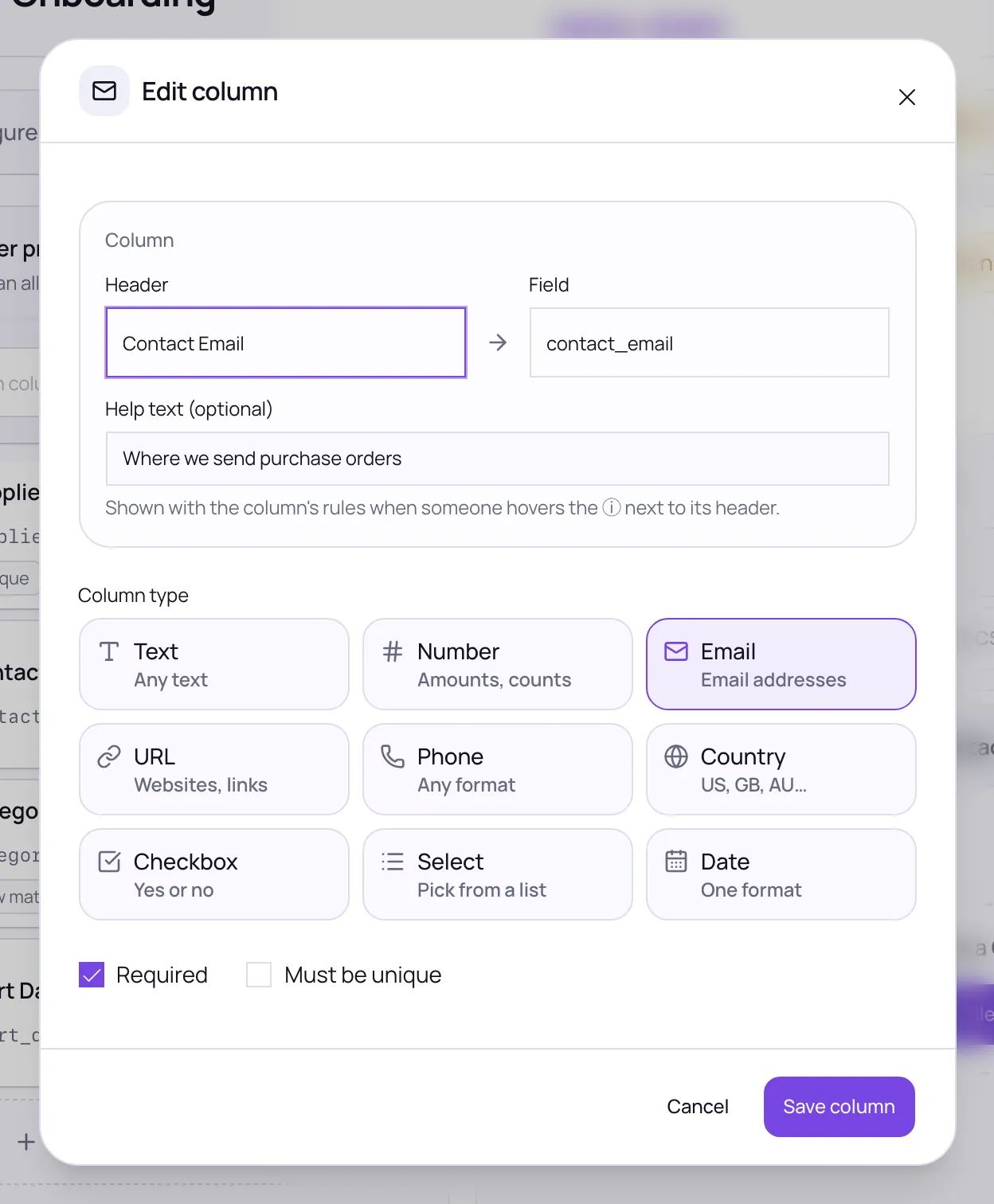
Every column has a header, a field name, a type, optional help text and optional rules.
Header
What your users see at the top of the column, such as Customer name.
Field
The column's name in the downloaded CSV, such as customer_name. Use whatever your other systems expect to import. Each field name must be different.
Help text (optional)
A short explanation, up to 200 characters, such as As it appears on the lease. Users see it, with the column's rules, when they hover the ⓘ next to the header.
Users don't need to read any instructions to find out what a column expects. Its rules are listed in the ⓘ tooltip, written from the settings you choose, for example "Required · Whole number · 0 to 100".
Field types
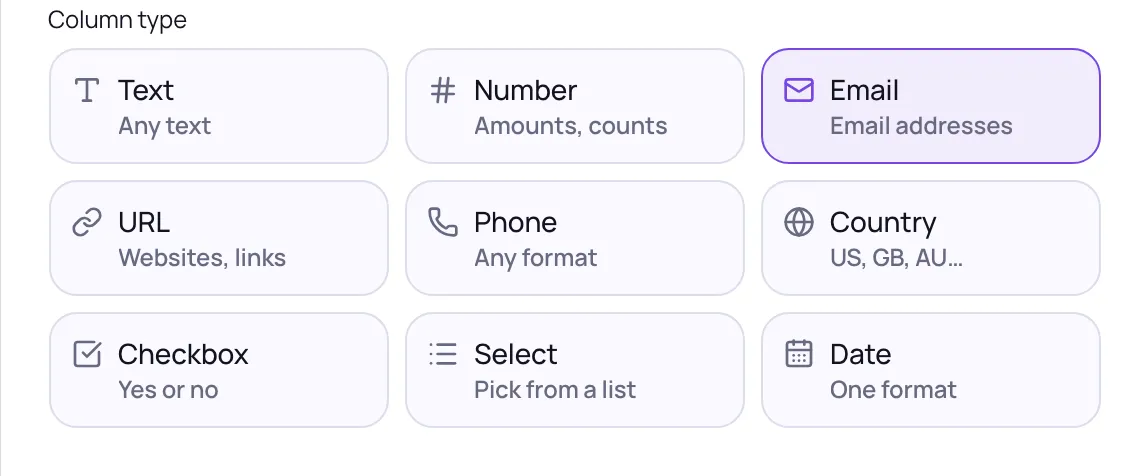
Text
Names, addresses, references, descriptions and IDs. Leading zeros are kept. Spaces before or after the value, and invisible characters copied from web pages or Word, are removed. You can set a minimum and maximum length.
Number
Whole numbers, decimals and amounts, with a full stop for decimals. Commas are read as thousands separators, so 1,500 becomes 1500; a comma used as a decimal point, as in 1,50, is flagged with 1.50 suggested rather than misread. Negatives can be written -45, (45) or 45-. Currency symbols, % signs and whole numbers over 15 digits are flagged too, with the fix where there is one.
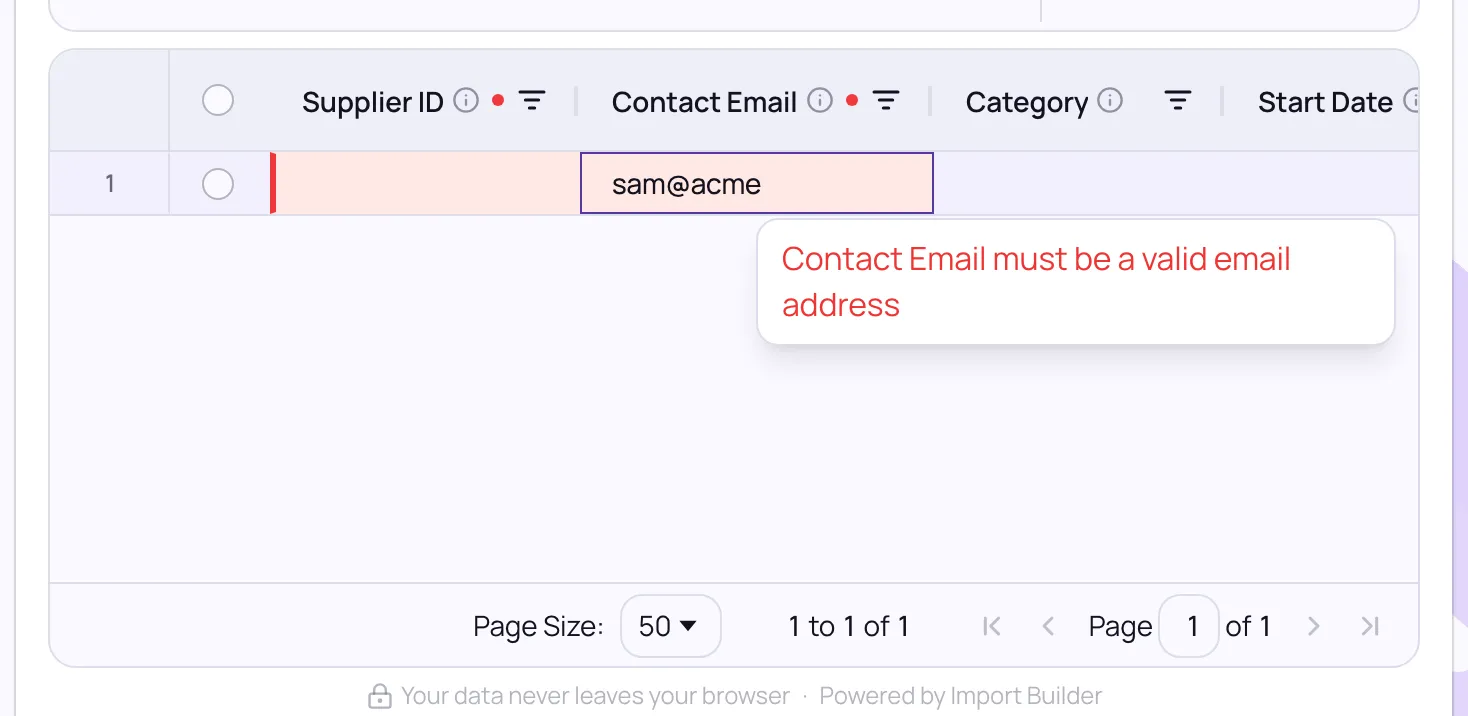
Must be a valid email address. Spaces before or after it are ignored and left out of the download.
URL
A web address. example.com and linkedin.com/in/jane are fine without https://, or tick Require http:// or https:// for links that get opened or downloaded, like image URLs. Spaces before or after are ignored.
Phone
A phone number in any common layout: (555) 123-4567, 555.123.4567, +44 20 7946 0958 or with an extension like ext. 89. It needs 7 to 15 digits; letters and Excel's scientific notation (4.47712E+11) are flagged. Spaces before or after are ignored.
Country
A 2-letter ISO country code, such as US, GB or AU, in any case and saved in capitals. Tick Also accept 3-letter codes for systems that take USA or GBR too. Country names and unofficial codes like UK are flagged with the code to use, never changed without you.
Checkbox
A yes/no tick box. Imported values of yes, y, true or 1 are ticked; no, n, false or 0 are unticked.
Select
A dropdown of options you list. Typed or imported values match regardless of capitals, and are saved as you wrote the option.
Date
A date in the one format you pick for the column: YYYY-MM-DD (with or without a time), DD/MM/YYYY or MM/DD/YYYY.
Column rules
Required
The cell can't be left empty. On a Checkbox column, Required means the box must be ticked, which suits confirmations such as I agree.
Unique
No two rows can have the same value in this column, such as invoice numbers or SKUs. Not available for Checkbox columns.
Minimum / maximum
Number columns only. Leave either empty for no limit.
Minimum / maximum length
Text columns only. How many characters a value can have, spaces included; an emoji or accented letter counts as one. An empty cell is allowed unless the column is Required. Leave either empty for no limit.
Allow values below zero
Number columns only. Turn it off to reject negative numbers.
Maximum precision
Number columns only. The most decimal places allowed. 0 means whole numbers only.
Options
Select columns only. The list of allowed values.
Date format
Date columns only. Each column accepts one format. If your users might use different formats, tell them which one in the column's help text.
How validation works
Every rule is checked in the user's browser as they type, paste or import. Validation works the same way in every project:
Errors show straight away
A cell that breaks a rule is highlighted, and hovering it explains what's wrong.
Duplicates are always checked
In Unique columns, every copy of a repeated value is marked, and the marks clear as soon as the duplicates are fixed or deleted.
Users can see only the problems
The error count above the grid filters it to just the rows with errors.
Download waits for clean data
The Download CSV button stays disabled until every error is fixed, so what you receive always passes your rules.
What your users can do
Your users get a spreadsheet that works much like Excel or Google Sheets. They don't need an account. They can:
Every form has a ? button that opens Filling in a form, a guide for your users that covers all of this, including the keyboard shortcuts. You can also send them the link.
Draft, preview and publish
Draft
The switch next to Save Changes shows Draft. The link and embed show This widget could not be found or is not currently published.
Preview
The preview beside the builder works while the project is a draft. The Preview button opens the published form in a new tab.
Live
Turn the switch to Live. Any unsaved changes are saved first, so what goes live is what you see.
Turning the switch back to Draft takes the form offline straight away. Work your users have saved in their browsers isn't affected, and comes back if you publish again.
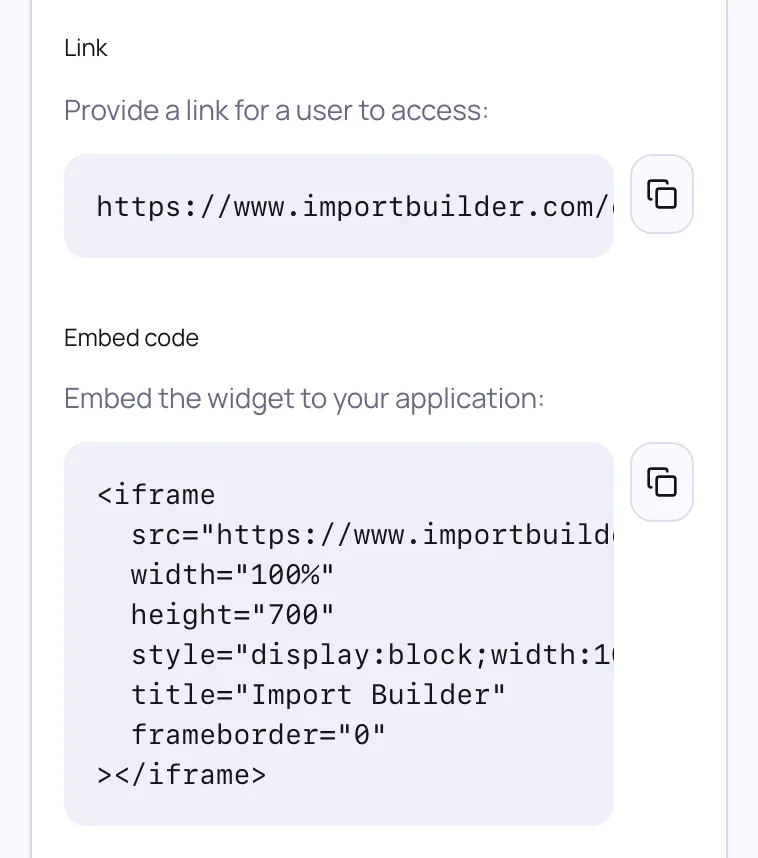
Public link
The Publish tab shows the form's link. Send it to anyone who needs to fill in the spreadsheet.
Embed
The Publish tab also has embed code to paste into your website or application. It looks like this:
<iframe
  src="https://www.importbuilder.com/embed/YOUR-PROJECT-ID"
  width="100%"
  height="700"
  style="display:block;width:100%;height:700px;border:0;"
  title="Import Builder"
></iframe>
The form fills the iframe, so change the height to suit your page.
What's visible when you publish
Publishing makes your workflow's setup available to anyone with the link or embed, just like a public form. That includes things like the title, column names, dropdown options and appearance. The data people enter is processed in their browser and isn't sent to Import Builder.
Keep confidential details, such as passwords, API keys or private client information, out of your project setup.
Changing a live project
You can change a published project at any time. Saved changes go live straight away. Changes to help text, the title and subtitle, appearance, or download settings don't affect anyone's work.
Changing columns can clear users' work
If you add, remove, rename or reorder columns, change a column's type or rules, or change the row limit, anyone with work saved in their browser sees "Editor schema changed" the next time they open the form. They can download what they have, but to carry on they have to clear the grid and start again.
If people are part-way through, tell them before you change columns, or create a new project for the new version.
Your users' spreadsheet data stays in the browser
Import Builder runs entirely in your browser. When someone opens a workflow, the only thing loaded from our servers is the workflow's setup: its columns, rules and appearance. Every row they paste, upload or type is checked and prepared on their own device, and the finished CSV is created there too. We never receive it, see it or store it.
The project stored by Import Builder contains the workflow definition: your columns, rules, settings, appearance, and publishing configuration. It does not contain the user's completed spreadsheet.
Local browser persistence is not permanent storage
Import Builder keeps the current spreadsheet in the user's browser so that closing or refreshing the page doesn't lose their work. This is a convenience feature, not a permanent backup system.
Browser storage can be cleared by the user or browser, and private/incognito browsing sessions generally do not keep it after the session ends. For long-running or important workflows, users should keep their own backup or downloaded copy.
Protection against spreadsheet formulas
A CSV cell that starts with =, +, - or @ can run as a formula when the file is opened in Excel. Import Builder adds a leading ' to cells like that when it creates the download. Phone numbers like +44 20 7946 0958 and negative numbers are left as they are. When you save a project, a leading =, +, - or @ is also removed from column headers, field names, options and the description.
Check it yourself
Open your browser's developer tools, go to the Network tab and fill in a workflow. You'll see the workflow's setup load once, and no requests carrying the data you enter.
What Import Builder does not do
Import Builder is intentionally focused on collecting, validating, editing, and exporting structured spreadsheet data.
This separation is intentional. Import Builder handles the spreadsheet workflow, while your existing business systems remain responsible for receiving, storing, processing, or importing the resulting data.
What is it useful for?
Import Builder works well anywhere someone needs to provide structured information in spreadsheet form.
Invoices
Collect invoice numbers, customers, dates, amounts, purchase orders, and payment information.
Property management
Collect property, tenant, owner, inspection, maintenance, and rental information.
Customers and suppliers
Collect contact details, account references, addresses, products, pricing, and other business information.
Inventory
Collect SKUs, quantities, locations, product information, and stock adjustments.
Office administration
Build structured workflows for registers, lists, recurring updates, and operational records.
Customer data collection
Give customers or partners a controlled spreadsheet for providing information in the format you need.
Working with difficult CSV files?
Our guides explain common spreadsheet and CSV problems.
Prevent IDs, invoice numbers, and codes losing their zeros.
Prevent large identifiers being treated as numbers.
Understand how Excel can change CSV values.
Understand CSV structure and common import issues.
Frequently asked questions
Is Import Builder a CSV importer?
It includes CSV importing, but Import Builder is broader than a traditional CSV importer. It is a spreadsheet workflow builder for collecting, editing, validating, mapping, and exporting structured CSV data.
Do my users need an account?
No. Anyone with the link, or on the page where it's embedded, can complete a published form.
Can I start from a template?
Yes. Templates provide a starting structure that you can then customize for your own workflow.
What field types are supported?
Text, Number, Email, URL, Phone, Country (ISO country codes), Checkbox, Select (a dropdown) and Date.
Can a date column accept more than one format?
No. Each date column accepts one format. Put the expected format in the column's help text so users know what to type.
Can users download a CSV that still has errors?
No. The Download CSV button stays disabled until every error is fixed. You can also turn the button off completely with Show Download CSV button on the Configure tab.
Can I prevent duplicate values?
Yes. Turn on Unique for the column. Duplicates are highlighted until they're fixed.
Can users import an existing CSV?
Yes. They can choose a file or drop it on the grid, then match its columns to yours. Columns with the same name are matched automatically.
Can I embed a project?
Yes. Copy the embed code from the Publish tab and paste it into your website or application.
Can my website receive the data when the user finishes?
Not at the moment. The user downloads the CSV and sends or uploads it as your process requires.
Can I edit a project after publishing it?
Yes. Save your changes and they go live straight away. Changing columns or rules makes anyone with work in progress clear their grid, so see Changing a live project first.
Why does Import Builder work this way?
Keeping the spreadsheet processing in the browser reduces unnecessary data transfer and helps protect user data. It also lets Import Builder focus on the workflow while your existing systems remain responsible for what happens to the completed CSV.
Does Import Builder permanently store the spreadsheet?
No. Spreadsheet contents are processed in the browser and are not stored by Import Builder. The browser keeps a copy so work survives a refresh, but it should not be treated as a backup.
Build your first spreadsheet workflow
Define your columns and rules, preview the workflow, then publish it as a link or embed it in your website.